Passive reconnaissance

Looking without touching, listening without speaking.

In IT security, reconnaissance often means running nmap at full throttle, launching vulnerability scanners, and seeing what responds. In OT security, this approach is roughly equivalent to testing whether a bomb is armed by hitting it with a hammer.

Passive reconnaissance is the art of learning everything you can about a system without sending a single packet to it. You observe, you listen, you document, you analyse. You’re the ornithologist watching birds through binoculars, not the hunter firing shotguns into the air to see what falls down.

This approach takes patience. It takes time. It goes against every instinct developed in IT security testing where speed and efficiency are valued. But in OT environments, patience isn’t just a virtue, it’s a survival strategy.

Network topology mapping via passive monitoring

Before you test anything, you need to understand what you’re looking at. Network topology mapping reveals the structure of the network, what’s connected to what, and how data flows between systems.

The passive approach

Passive topology mapping works by observing existing traffic without generating any of your own. You’re sitting in a busy cafe and learning about the neighbourhood by listening to conversations, not by interrogating everyone.

You need a position where you can see traffic. This means:

  • A SPAN port on a switch (where the network team mirrors traffic to your monitoring port)

  • A network TAP device (physically inline, copies all traffic)

  • Access to network devices that log traffic (routers, firewalls)

  • Physical access to network cables (for installing TAPs)

At UU P&L, the network team configured SPAN ports on the core OT switches. This gave visibility into:

  • Turbine control network (192.168.10.0/24)

  • Distribution SCADA network (192.168.20.0/24)

  • Reactor control network (192.168.30.0/24)

  • Engineering workstation network (192.168.40.0/24)

What passive monitoring reveals

By simply watching traffic for hours or days, you learn:

Who talks to whom: IP addresses and MAC addresses in conversations reveal which devices communicate. The turbine PLCs (192.168.10.10-12) regularly communicate with the SCADA server (192.168.20.5). The engineering workstation (192.168.40.15) occasionally connects to all PLCs.

Communication patterns: Some conversations happen constantly (SCADA polling PLCs every 5 seconds). Others are periodic (historian queries every 5 minutes). Some are sporadic (engineering workstation connects only during programming sessions).

Protocol usage: You can see Modbus TCP on port 502, S7comm on port 102, DNP3 on port 20000, HTTP/HTTPS for web interfaces, and so on.

Network structure: Which systems are on which subnets? Are VLANs properly segmented or can everything talk to everything? Are there unexpected routes between networks?

Device roles: The device that everyone queries is probably a server. The device that only responds is probably a PLC. The device that talks to many others might be an HMI or engineering workstation.

Passive topology mapping at UU P&L

After 48 hours of passive monitoring on the turbine control network, the topology emerged:

Core Switch (VLAN 10 - Turbine Control)
├── Turbine PLC 1 (192.168.10.10) - Responds on Modbus TCP port 502
├── Turbine PLC 2 (192.168.10.11) - Responds on Modbus TCP port 502
├── Turbine PLC 3 (192.168.10.12) - Responds on Modbus TCP port 502
├── Safety PLC 1 (192.168.10.20) - Broadcasts status on Modbus TCP
├── Safety PLC 2 (192.168.10.21) - Broadcasts status on Modbus TCP
└── Engineering Access Point (192.168.10.100) - Bridge to other networks

The safety PLCs were supposed to be on a completely separate network. They weren’t. They were on the same VLAN as the control PLCs, broadcasting their status every 30 seconds in plain Modbus for anyone to see.

This was discovered without sending a single packet. Just watching and listening.

The revelation that safety systems were broadcasting their status was particularly concerning. An attacker with network access could passively monitor safety system status, learning exactly when safety conditions were being approached, when systems were operating near limits, and when operators were acknowledging alarms. This intelligence would be invaluable for planning an attack that stays just under safety thresholds or for knowing exactly when to strike to maximise impact.

SPAN ports and network TAPs

To do passive monitoring, you need access to network traffic. Two main approaches exist: SPAN ports and TAPs.

SPAN ports (Switch Port Analyser)

A SPAN port is a switch port configured to mirror traffic from other ports. It’s a software feature of managed switches.

Configuration: A network engineer configures the switch to copy all traffic from specific ports (or VLANs) to your monitoring port.

Advantages:

  • No physical changes to network

  • Can be reconfigured remotely

  • No additional hardware required (if switch supports it)

  • Can monitor traffic from multiple ports simultaneously

Disadvantages:

  • May drop packets under heavy load (monitoring is low priority for switch)

  • Doesn’t capture Layer 1 errors (electrical problems, collisions, etc.)

  • Only works if switch supports SPAN/mirror ports

  • May not capture all traffic types (some switches don’t mirror certain protocols)

At UU P&L, SPAN ports were used on the main OT switches because:

  • Switches were relatively modern Cisco Catalyst switches with good SPAN support

  • Network team could configure them remotely

  • No budget for TAP hardware

  • Traffic volumes were moderate (industrial networks are typically low bandwidth)

The configuration mirrored all VLAN 10 traffic (turbine control) to port 24, where the testing laptop connected. The command used was:

monitor session 1 source vlan 10
monitor session 1 destination interface GigabitEthernet0/24

Simple, effective, and crucially, non-disruptive to operations.

Network TAPs (Test Access Points)

A TAP is a physical device inserted inline in a network cable. It splits the signal, sending copies to monitoring ports whilst allowing traffic to continue normally.

Physical installation: The network cable is unplugged, the TAP is inserted between the endpoints, and a monitoring device connects to the TAP’s monitor port.

Advantages:

  • Sees all traffic, all the time (no dropped packets)

  • Captures Layer 1 errors and timing information

  • Completely passive (cannot affect network even if TAP fails)

  • Works with any network type

  • No switch configuration needed

Disadvantages:

  • Requires physical access to cable

  • Requires network downtime for installation (brief, but still downtime)

  • Costs money (though basic TAPs are relatively affordable)

  • Need one per link you want to monitor

At UU P&L, TAPs were considered for the reactor control network because:

  • Critical nature of reactor made dropped packets unacceptable

  • Network was on older switches without good SPAN support

  • Physical access was possible during scheduled maintenance

However, the requirement for downtime to install TAPs delayed their deployment. By the time scheduled maintenance came around, SPAN ports on upgraded switches were available. The TAPs were purchased but remained in their boxes, waiting for the next project. This is typical of security hardware procurement in many organisations: by the time budget is approved and equipment arrives, circumstances have changed and the immediate need has been met another way.

Choosing between SPAN and TAP

Use SPAN ports when:

  • Switches support it (mind performance)

  • No physical access to cables

  • Monitoring multiple segments from one point

  • Budget constraints

Use TAPs when:

  • Absolute certainty seeing all traffic is critical

  • Switches don’t support SPAN or do it poorly

  • Physical access is available

  • Budget allows

For initial reconnaissance, SPAN ports are usually sufficient. For long-term monitoring or critical analysis, TAPs are better.

Protocol analysis with Wireshark

Wireshark is the standard tool for protocol analysis. It captures network packets and dissects them into human-readable formats.

For OT environments, Wireshark’s industrial protocol dissectors are essential. These decode protocols like Modbus, S7comm, DNP3, EtherNet/IP, and many others.

Setting up Wireshark for OT

Installation is straightforward: download and install the latest stable version. Industrial protocol dissectors are included by default in recent versions. Additional dissectors are available via plugins if needed.

Configuration for long-term capture requires some thought:

  • Ring buffer mode (automatically manages disk space by rotating files)

  • Appropriate capture filters (capture only relevant traffic)

  • Sufficient disk space (industrial networks generate less traffic than IT, but hours of capture still add up)

At UU P&L, Wireshark was configured to:

  • Capture on the SPAN port interface

  • Use ring buffer of 10 files, 100 MB each (last 1 GB of traffic retained)

  • Capture filter: tcp or udp (ignore broadcast/multicast noise, focus on conversations)

  • Run on a dedicated laptop left connected for 48 hours

Reading industrial protocols in Wireshark

When you open a capture file, Wireshark’s protocol dissectors automatically decode industrial protocols. A Modbus TCP conversation looks something like:

Frame 1234: 66 bytes on wire
Ethernet II, Src: 00:11:22:33:44:55, Dst: aa:bb:cc:dd:ee:ff
Internet Protocol Version 4, Src: 192.168.20.5, Dst: 192.168.10.10
Transmission Control Protocol, Src Port: 52341, Dst Port: 502
Modbus TCP
    Transaction ID: 0x0001
    Protocol ID: 0x0000 (Modbus)
    Length: 6
    Unit ID: 1
    Function Code: Read Holding Registers (3)
    Starting Address: 40001
    Quantity: 10

This reveals:

  • SCADA server (192.168.20.5) is querying PLC (192.168.10.10)

  • Using Modbus function code 3 (read holding registers)

  • Reading 10 registers starting at address 40001

  • This is probably reading setpoints or status values

A Siemens S7comm conversation looks different:

Frame 5678: 120 bytes on wire
Ethernet II, Src: 00:aa:bb:cc:dd:ee, Dst: 11:22:33:44:55:66
Internet Protocol Version 4, Src: 192.168.40.15, Dst: 192.168.30.10
Transmission Control Protocol, Src Port: 49152, Dst Port: 102
COTP (ISO 8073)
S7 Communication
    Header: Job Request
    Parameter: Setup Communication
    Function: Read Var
    Item Count: 1
    Item 1: DB 1, Start 0, Length 100

This reveals:

  • Engineering workstation (192.168.40.15) is accessing reactor PLC (192.168.30.10)

  • Using S7comm protocol (port 102)

  • Reading data block 1, 100 bytes

  • This is probably an engineer downloading program segments or checking configuration

Pattern analysis in Wireshark

Beyond individual packets, Wireshark’s statistics features reveal patterns:

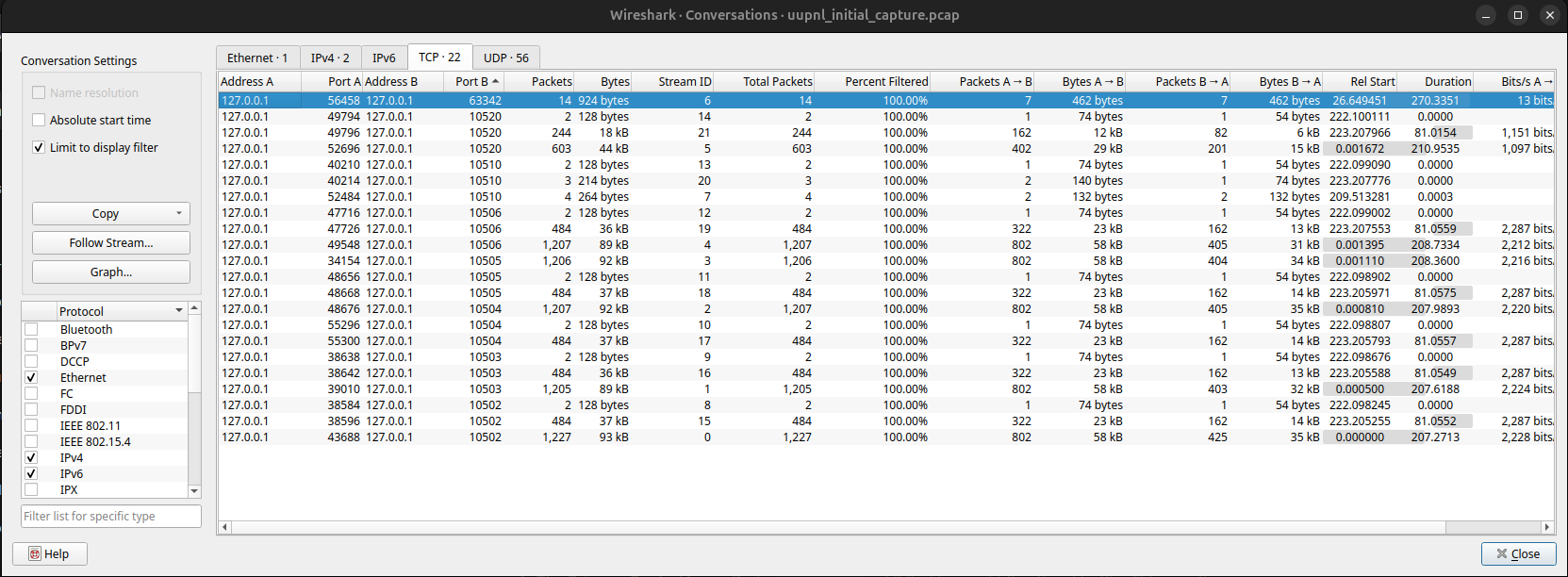
  • Statistics → Conversations shows all conversations between IPs, sorted by packets or bytes. This reveals who talks to whom most often.

  • Statistics → Protocol Hierarchy shows the distribution of protocols. Mostly Modbus? Lots of HTTP? Unexpected protocols?

  • Statistics → IO Graph visualises traffic over time. Is there constant polling? Periodic spikes? Unusual patterns?

At UU P&L, the IO Graph revealed:

  • Constant baseline traffic (SCADA polling PLCs every 5 seconds)

  • Regular 5-minute spikes (historian queries)

  • Occasional larger spikes (engineering workstation connections)

  • One massive spike at 02:00 every Tuesday (automated backup pulling data from all PLCs)

The backup process was undocumented but consumed significant network bandwidth. This was noted for future reference: if testing is scheduled during backup time, expect slower responses from PLCs.

Using tcpdump for long-term capture

tcpdump is a command-line packet capture tool. It’s lighter weight than Wireshark for long-term captures:

tcpdump -i eth0 -w capture.pcap -C 100 -W 10 tcp or udp

This captures to rotating files (100 MB each, keep 10), same as Wireshark but with lower overhead. The files can later be opened in Wireshark for analysis.

Identifying PLCs via protocol fingerprinting

Passive monitoring can identify PLC types, models, and sometimes firmware versions without actively querying them.

Protocol-based identification

Different PLC manufacturers use different protocols. Just seeing the protocol tells you the manufacturer family:

  • Siemens uses S7comm or S7comm-plus on TCP port 102. S7-300/400 series use S7comm. S7-1200/1500 series use S7comm-plus (often with S7comm fallback).

  • Rockwell (Allen-Bradley) uses EtherNet/IP on TCP port 44818 and UDP port 2222. This covers ControlLogix, CompactLogix, and MicroLogix families.

  • Schneider Electric (Modicon) uses Modbus TCP on port 502 for their M340, M580, and other Modicon series.

  • Mitsubishi uses MELSEC protocol on port 5007.

  • ABB varies by product line but often uses proprietary protocols.

Protocol fingerprinting details

Within protocols, subtle differences reveal specific models:

  • S7comm communications include CPU type in connection setup, module identification, and firmware version strings.

  • EtherNet/IP responses include device identity objects with vendor ID, product code, and revision, providing detailed model information.

  • Modbus responses can include vendor-specific register layouts and device identification extensions (when implemented).

At UU P&L, passive monitoring of S7comm traffic showed:

S7comm Setup Communication Response
CPU Type: 315-2 PN/DP
Module: 6ES7 315-2EH14-0AB0
Firmware: V3.2.6

This identified the reactor PLCs as Siemens S7-315 models with specific firmware version. Without sending a single query, just by watching the SCADA server’s legitimate polling traffic, the complete device information was revealed.

Similarly, EtherNet/IP traffic revealed the turbine PLCs were Allen-Bradley ControlLogix 1756-L73 with firmware version 28.012.

Broadcast and multicast traffic

Some industrial protocols use broadcast or multicast for service discovery or status updates:

  • EtherNet/IP uses UDP multicast for device discovery.

  • BACnet uses broadcast for “Who-Is” device discovery.

  • Some PLCs broadcast status for redundancy or monitoring.

This broadcast traffic is particularly valuable for passive reconnaissance because it’s unsolicited. Devices are advertising their presence without being asked.

At UU P&L, the safety PLCs broadcast their status every 30 seconds using Modbus TCP to a multicast address. This revealed:

  • Two safety PLCs on the network

  • Their current operational state

  • Alarm status

  • Time synchronisation information

All without sending them a single packet. The safety PLCs were helpfully announcing to anyone listening that they existed, what state they were in, and whether any safety conditions were active.

Passive OS fingerprinting

Operating systems have subtle differences in how they implement TCP/IP. These differences can be detected passively by observing normal traffic.

How passive OS fingerprinting works

Different OS implementations make different choices:

  • Initial TTL values (64 for Linux, 128 for Windows, 255 for some network devices)

  • TCP window sizes and scaling

  • TCP options and their order

  • Fragment handling

  • Response timing characteristics

  • ICMP implementations

Tools like p0f passively fingerprint operating systems by analysing these characteristics in observed traffic without sending any packets.

Limitations in OT

OS fingerprinting works better for general-purpose computers than for PLCs and embedded devices.

Fingerprinting is valuable for identifying operating systems on HMIs, engineering workstations, and SCADA servers. These typically run standard Windows or Linux, which fingerprint reliably.

PLCs often use embedded real-time operating systems (RTOS) that aren’t in fingerprint databases. Even when identified, knowing it’s “VxWorks 6.x” doesn’t tell you much about vulnerabilities because the implementation is so customised.

At UU P&L, passive OS fingerprinting revealed:

  • SCADA servers running Windows Server 2012 R2

  • Engineering workstations running Windows 7

  • One mysterious device with Windows XP signature on the turbine network

  • Several Linux systems (further investigation identified them as protocol gateways)

The Windows XP system was the “forgotten box in the corner”. It had been running so long that nobody remembered it was there. Passive reconnaissance found it before active scanning would have, and without risking disrupting it by poking it with packets.

Traffic pattern analysis

Beyond individual packets, analysing traffic patterns reveals operational characteristics and establishes baselines for normal behaviour.

Normal baseline establishment

By watching traffic over days or weeks, you can establish what “normal” looks like:

  • Communication frequency (SCADA polls PLCs every 5 seconds)

  • Data volumes (typical query returns 100 bytes, typical response is 200 bytes)

  • Active hours (engineering access mostly weekday business hours)

  • Periodic activities (backups at 02:00 Tuesdays, maintenance windows Saturday mornings)

This baseline is valuable for understanding normal operations, detecting anomalies during testing, planning testing to minimise impact, and eventually for intrusion detection.

Identifying operational states

Industrial systems have different operational states with correspondingly different network patterns:

  • Startup shows heavy communication as systems initialise and synchronise.

  • Normal operation shows regular polling and control traffic.

  • Shutdown shows a sequence of commands bringing systems to a safe state.

  • Maintenance shows engineering access, program uploads and downloads.

  • Emergency shows rapid commands and safety system communications.

At UU P&L, traffic patterns revealed the daily rhythm:

  • Morning startup (06:00 weekdays) showed a sequence of Modbus writes to turbine PLCs bringing turbines online, increased polling frequency during startup, brief engineering workstation connection running automated startup sequence. Duration: 30 minutes.

  • Normal operation showed steady SCADA polling at 5-second intervals, occasional operator commands (Modbus writes from HMI), historian queries every 5 minutes, and minimal engineering access.

  • Evening shutdown (23:00 weekdays) showed a sequence of commands reducing turbine load, one turbine fully shut down overnight (rotation for maintenance), reduced polling of offline turbine. Duration: 45 minutes.

This operational schedule informed testing planning: test during night hours when one turbine is offline, minimising risk. Testing an offline turbine meant that even if something went catastrophically wrong, the city would still have power from the other two turbines.

Unusual patterns worth investigating

Passive monitoring also reveals unusual patterns that warrant investigation:

At UU P&L, several oddities appeared:

  • Regular connection from an unknown IP (192.168.50.15) to the SCADA server every night at 03:00

  • Periodic large data transfers from historian to an external IP address

  • Occasional HTTP requests to PLCs from engineering workstation (PLCs have web interfaces, but they’re rarely used)

Investigation revealed:

  • The unknown IP was a business intelligence server on the corporate network, pulling data for executive dashboards

  • The external transfers were cloud backups to vendor’s storage (undocumented but legitimate)

  • The HTTP requests were an engineer using PLC web interfaces for quick diagnostics rather than loading full engineering software

None of these were malicious, but they were undocumented and unexpected. They expanded the attack surface and created dependencies that needed to be understood.

Broadcast and multicast discovery

Some protocols use broadcast or multicast for automatic device discovery, and this traffic is extremely valuable for passive reconnaissance.

Common discovery protocols

UDP broadcast protocols include DHCP (though PLCs usually have static IPs), NetBIOS name resolution, SSDP (Simple Service Discovery Protocol), and various vendor-specific discovery protocols.

Multicast protocols include mDNS (Multicast DNS), IGMP (for multicast group management), and industrial protocol-specific discovery like EtherNet/IP.

What discovery traffic reveals

  • Device names appear in NetBIOS or mDNS announcements. A device announcing itself as “TURB-PLC-01” is clearly identifiable.

  • Services are announced via SSDP. This is useful for finding web interfaces and other network services.

  • Capabilities are announced in industrial protocol discovery, including device capabilities, I/O configuration, and supported functions.

  • Network organisation appears in multicast group membership, showing which devices are part of which monitoring groups.

At UU P&L, mDNS traffic revealed:

  • Engineering workstation advertising file sharing services

  • HMI workstations advertising remote desktop services

  • Several devices advertising HTTP services on non-standard ports

One device advertised itself as “TURBINEHALL-TEMP”. This was the mysterious wireless access point installed by a contractor years ago, still broadcasting its presence via mDNS, still bridging networks that were supposed to be separate, still configured with default credentials.

The wireless access point was discovered not through active scanning but through passive observation of its helpful announcements of its own existence.

Documentation review (drawings, manuals, maintenance logs)

Passive reconnaissance isn’t just network monitoring. It includes reviewing existing documentation, which often reveals more than any amount of packet capture.

Types of documentation to review

  • Network diagrams show physical topology (where cables go), logical topology (VLANs, routing), IP addressing schemes, and equipment locations.

  • Electrical single-line diagrams show power distribution, control circuits, and connections between systems.

  • P&IDs (Piping and Instrumentation Diagrams) show process flow, instrumentation and control points, and how systems interact physically.

  • System architecture documents describe SCADA system design, PLC program architecture, database schemas, and integration points.

  • Equipment manuals provide manufacturer specifications, default configurations, known vulnerabilities (sometimes documented in manuals), and communication protocols supported.

  • Maintenance logs reveal what breaks frequently (potential DoS via triggering known failure modes), recent changes (systems recently modified are higher risk), vendor access records (who has remote access), and the general health of systems.

  • Configuration backups contain actual configurations (rather than theoretical designs), credentials (often in configuration files), and show deviation from design (as-built vs as-designed).

At UU P&L, documentation review revealed treasures and horrors:

  • A network diagram from 2015 showed four VLANs with a firewall between them. Reality check: six VLANs exist, and firewall rules allow all traffic between all VLANs. The firewall is effectively decorative, like the gargoyles on university buildings.

  • Maintenance logs showed turbine PLC 2 crashes and restarts once per month on average. Root cause was never determined, but “restarting it fixes the problem”. This PLC should be tested very, very gently, if at all.

  • An old SCADA vendor proposal document was found in archived files. It included default administrator credentials for the SCADA system. Testing confirmed these credentials were never changed. The password was literally “password123”, chosen in 2009 and maintained for 16 years through multiple upgrades and security assessments.

  • Electrical diagrams showed that the control room backup UPS has 30 minutes of runtime. This information fed into testing scenarios: if primary power is lost during testing, there’s a 30-minute window to restore it before the UPS dies and the control room goes dark.

Documentation does not match reality

The most important lesson from documentation review is that documentation is always out of date.

  • Systems change constantly. Equipment is replaced, configurations are modified, networks are reorganised. Documentation is updated optimistically at best, never at worst.

  • Undocumented changes accumulate. Contractors add equipment, engineers make configuration tweaks, wireless access points mysteriously appear. None of it gets documented because “it’s temporary” or “we’ll update the documentation next week” or “documentation is someone else’s job”.

  • “Temporary” becomes permanent. Bypass connections for troubleshooting, test equipment left in place, “we’ll remove that next week” from five years ago, all become permanent fixtures.

At UU P&L, comparing documentation to observed reality revealed:

  • Three systems not in any diagram (including the Windows XP box and the wireless access point)

  • Two VLANs not documented

  • Remote access VPN not mentioned anywhere (because IT installed it without telling OT)

  • Safety PLCs on wrong VLAN (documentation showed separate safety network, reality showed them mixed with control network)

The lesson: documentation is a starting point, not ground truth. Passive reconnaissance reveals reality. The job is to document what actually exists, not what’s supposed to exist.

Creating documentation

During passive reconnaissance, create some documentation, like:

  • Network maps showing what you actually observe, not what diagrams say should exist.

  • Device inventories with actual firmware versions, not what procurement records suggest.

  • Communication patterns and frequencies measured.

  • Dependencies discovered through observation.

  • Anomalies and unknowns that need further investigation.

This documentation serves multiple purposes: it can be the foundation for active testing, can provide comparison against official documentation, can serve as a deliverable showing current state, and can creates a historical record for future assessments.

At UU P&L, the reconnaissance documentation became more accurate than the organisation’s own records. The client requested copies of the network diagrams and asset inventory to replace their outdated versions. This is not uncommon. Sometimes the most valuable output of a security assessment isn’t the vulnerability findings but the accurate documentation of what actually exists.